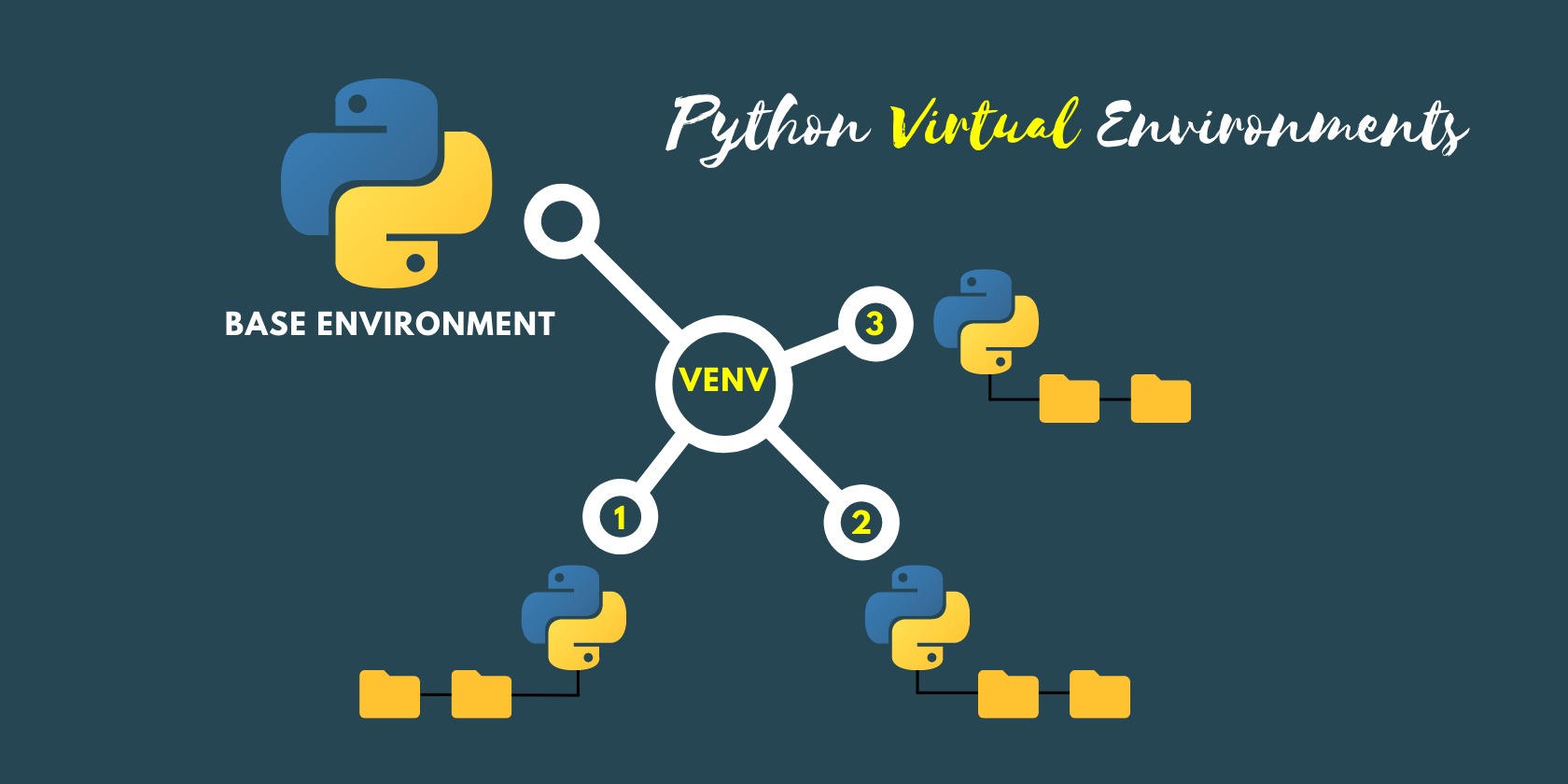
This isolation is crucial because it solves some very common and painful problems in development:
-
Preventing Dependency Conflicts: Different projects often require different versions of the same library. Virtual environments allow
Project Ato useDjango 3.2andProject Bto useDjango 4.1without either one breaking. -
Ensuring Reproducibility: You can generate a
requirements.txtfile that lists every package and its exact version. This file allows anyone (or your future self) to recreate the exact environment on another machine, eliminating the dreaded "it works on my machine" problem. -
Keeping Your System Clean: It prevents you from cluttering your main Python installation with project-specific packages, which can lead to permission issues and an unorganized global environment.
🛠️ Creating Your First Virtual Environment with venv
Python comes with the built-in venv module, which is the recommended way to create virtual environments for most projects.
Step 1: Navigate to your project folder.
Open your terminal (Command Prompt, PowerShell, or Bash) and change the directory to your project's root folder.
cd path/to/your/project
Step 2: Create the virtual environment.
Run the following command. It's a common convention to name the virtual environment folder .venv or venv.
-
On Windows:
bashpy -m venv env
-
On macOS/Linux:
bashpython3 -m venv env
This command creates a new folder called .venv in your project directory, containing a full, isolated Python environment.
✅ How to Activate and Deactivate the Environment
Once created, you need to activate the environment to use it. You'll know it's active when you see the environment's name (e.g., (.venv)) appear at the beginning of your terminal prompt.
To Activate:
-
Windows (Command Prompt):
bash.venv\Scripts\activate.bat
-
Windows (PowerShell):
bash.venv\Scripts\Activate.ps1
Note: On some systems, you may need to run
Set-ExecutionPolicy -ExecutionPolicy RemoteSigned -Scope CurrentUseronce to allow scripts to run. -
macOS/Linux (bash/zsh):
bashsource .venv/bin/activate
To Deactivate:
When you're done working on the project, simply type the following command. Your prompt will return to normal, indicating you're back in your global system environment.
deactivate
📦 Installing Packages and Managing Dependencies
With your virtual environment activated ((.venv) visible in your prompt), you can now use pip to install packages safely.
Install a Package:
python -m pip install requests
This installs the requests library only within the active .venv folder, not globally.
Create a requirements.txt File:
To capture a snapshot of all packages installed in your current environment, use the freeze command:
python -m pip freeze > requirements.txt
This command creates a requirements.txt file listing every package and its exact version.
Install from a requirements.txt File:
To recreate an environment on a new machine or for a collaborator, use this command to install all dependencies at once:
python -m pip install -r requirements.txt
💡 Best Practices at a Glance
-
Use one environment per project to keep dependencies separate.
-
Use
.venvas the environment name for consistency and clear identification. -
Always
activatebefore installing anything to avoid polluting your global Python install. -
Treat environments as disposable, and simply recreate a fresh one if something breaks.
-
Add your virtual environment folder (
.venv/) to your.gitignorefile so you don't commit it to version control. Therequirements.txtfile is the lightweight way to share dependencies.
🐛 Troubleshooting Common Issues
Here's a quick guide to the most common problems:
| Problem | Solution(s) |
|---|---|
python or python3 not recognized |
Python is not installed correctly or not added to your system's PATH. Reinstall Python and make sure to check "Add Python to PATH" during installation. |
| PowerShell script execution disabled | Run PowerShell as an administrator and execute: Set-ExecutionPolicy -ExecutionPolicy RemoteSigned -Scope CurrentUser. |
Package installs but code shows ModuleNotFoundError |
Your virtual environment may not be active. Make sure you see (.venv) in your terminal prompt before installing or running your code. |
pip is out of date |
While your environment is active, update pip with: python -m pip install --upgrade pip setuptools wheel. |
| Accidentally installed packages globally | Check which Python your terminal is using: where python (Windows) or which python (macOS/Linux). If the path doesn't point to your .venv folder, you aren't in the active environment. |
✨ Extra: Going Beyond venv
While venv is perfect for most projects, here are some advanced tools for specific use cases:
-
virtualenv: A more powerful, third-party alternative tovenvthat offers additional features and works with older Python versions. -
pipenv: Combinespipandvenvinto a single tool, automatically managingPipfileandPipfile.lockfor deterministic builds. -
poetry: An all-in-one tool for dependency management and packaging, streamlining the entire project workflow. -
conda: A language-agnostic environment manager that's particularly popular in the data science and machine learning communities for its ability to handle non-Python binary dependencies like CUDA and BLAS. -
pyenv: A specialized tool that manages multiple Python versions on your system (e.g., switching between Python 3.9, 3.11, and 3.12) but does not handle package isolation by itself.
📚 Leveraging Virtual Environments in IDEs
Modern IDEs make virtual environments effortless to use:
Visual Studio Code (VS Code)
-
After creating your
.venvfolder, VS Code often detects it automatically. -
To manually select it, open the Command Palette (
Ctrl+Shift+P), search for "Python: Select Interpreter", and choose the one inside your.venvfolder. VS Code will then use the environment for both running and debugging your code.
PyCharm
-
PyCharm prompts you to create a new virtual environment when you start a new project.
-
You can also manually configure an existing one by going to File -> Settings -> Project -> Python Interpreter.
By following these steps and best practices, you'll keep your Python projects stable, shareable, and free from frustrating dependency issues.
If you'd like to see how virtual environments fit into a larger, job-ready curriculum—from a beginner's first script to a fully deployed application—CodingNow builds these industry best practices into every stage of our Full Stack and Data Science courses.